Angular : Segment ui 컬럼 매핑 Table 작성
1. 이 포스트는 헤더배열과 데이터배열을 전달하면 자동으로 컬럼 만큼의 테이블을 생성해주는 컴포넌트 작성이다.
2. table 컴포넌트를 생성한다.
2-0 데이터 구조는 다음과 같이 전달한다.
2-0-1 헤더는 키와 표출될 구문을 분리한다. 테이블은 헤더의 속성 순서대로 표출되도로 할 것이다.
2-0-2 데이터는 모든 키값을 포함하는 데이터를 작성한다. 데이터의 순서는 상관없다.
  headers = [
    { key: 'name', label: 'Name' },
    { key: 'age', label: 'Age' },
    { key: 'status', label: 'Employed' },
    { key: 'job', label: 'Job' },
  ]

  data = [
    { name: 'Pilseong', age: 41, job: 'Developer', status: false },
    { name: 'Suel', age: 8, job: 'Student', status: true },
    { name: 'Noel', age: 6, job: 'Baby', status: true }
  ]
2-1 table component template
2-1-1 헤더부분의 생성은 헤더 배열의 크기 만큼 반복하여 label에 있는 헤더 구문을 표출한다.
2-1-2 데이터 표출 부분은 데이터 배열의 양만큼 tr을 반복하고 td는 헤더의 개수만큼 반복한다.
2-1-3 td에서 데이터를 읽어 올 때 헤더의 key값과 동일한 속성을 끌어오기 때문에 헤더 순서로 자동으로 지정된다.
<table class="ui celled table">
  <thead>
    <tr>
      <th *ngFor="let header of headers">{{ header.label }}</th>
    </tr>
  </thead>
  <tbody>
    <tr *ngFor="let datum of data">
      <td *ngFor="let header of headers">{{ datum[header.key] }}</td>
    </tr>
  </tbody>
</table>
2-2 table component class
2-2-1 부모 컴포넌트로 부터 속성을 통해 데이터를 받아오기 위해서 2개 바인딩 배열을 지정한다.
import { Component, OnInit, Input } from '@angular/core';

@Component({
  selector: 'app-table',
  templateUrl: './table.component.html',
  styleUrls: ['./table.component.css']
})
export class TableComponent implements OnInit {

  @Input() headers = []
  @Input() data = []

  constructor() { }

  ngOnInit(): void {
  }
}
3. 사용하는 부모 컴포넌트
3-1 component template
3-1-1 컴포넌트 클래스에서 지정한 데이터를 app-table의 input 바인딩 속성을 통해 넘겨준다.
<app-title>
  Placeholder Component
</app-title>
<app-table [headers]="headers" [data]="data"></app-table>
3-2 component class
3-2-1 컴포넌트 템플릿에서 전달한 데이터는 클래스에 지정되어 있다.
import { Component, OnInit } from '@angular/core';

@Component({
  selector: 'app-home-collections',
  templateUrl: './home-collections.component.html',
  styleUrls: ['./home-collections.component.css']
})
export class HomeCollectionsComponent implements OnInit {

  headers = [
    { key: 'name', label: 'Name' },
    { key: 'age', label: 'Age' },
    { key: 'status', label: 'Employed' },
    { key: 'job', label: 'Job' },
  ]

  data = [
    { name: 'Pilseong', age: 41, job: 'Developer', status: false },
    { name: 'Suel', age: 8, job: 'Student', status: true },
    { name: 'Noel', age: 6, job: 'Baby', status: true }
  ]

  constructor() { }

  ngOnInit(): void {
  }

}
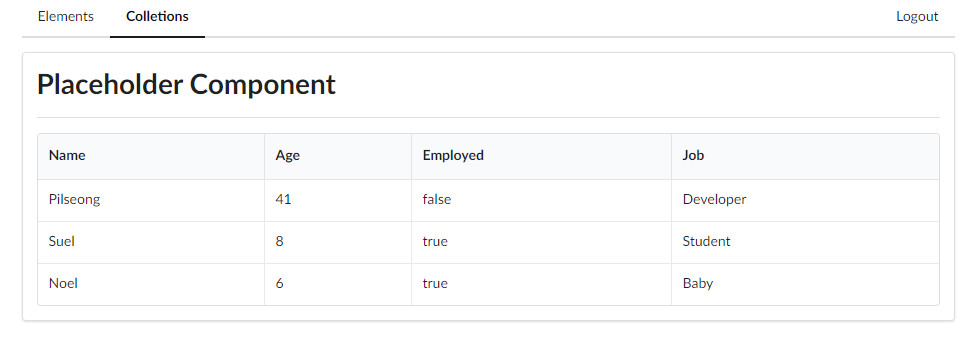
4. 결과 표출 화면
4-1 헤더배열의 객체 순서대로 입력된 것을 볼 수 있다.
5. 추가적으로 테이블이 지원하는 다양한 클래스를 임으로 지정하고 싶으면 아래처럼 추가한다.
5-1 테이블 클래스에 classNames 바인딩 속성을 추가한다.
export class TableComponent implements OnInit {

  @Input() headers = []
  @Input() data = []

  @Input("classNames") classNames = ""

  constructor() { }

  ngOnInit(): void { }
}
5-2 테이블 뷰에서 [ngClass]에 클래스에서 지정한 바인딩 속성 classNames를 지정한다.
5-2-1 ngClass는 이전 포스트에서 보여 주었듯 객체를 받지만 클래스 이름으로 구성된 문자열도 받을 수 있다.
<table class="ui celled table" [ngClass]="classNames">
  <thead>
    <tr>
      <th *ngFor="let header of headers">{{ header.label }}</th>
    </tr>
  </thead>
  <tbody>
    <tr *ngFor="let datum of data">
      <td *ngFor="let header of headers">{{ datum[header.key] }}</td>
    </tr>
  </tbody>
</table>
5-3 사용하는 부모 컴포넌트 뷰에서 classNames 라는 속성을 통해 class를 지정한다.
<app-title>
  Placeholder Component
</app-title>
<app-table [headers]="headers" [data]="data" classNames="striped celled"></app-table>
5-4 결과를 보면 celled, striped가 적용된 것을 확인할 수 있다.
